
Configuration level:
[All devices] Try the possibly known passwords (admin, admin123, 888888, 123456, 654321, qwerty!!), remember normally devices require 8 characters with the combination with words and digits, however, some devices like VTHs only accept 6 digits.
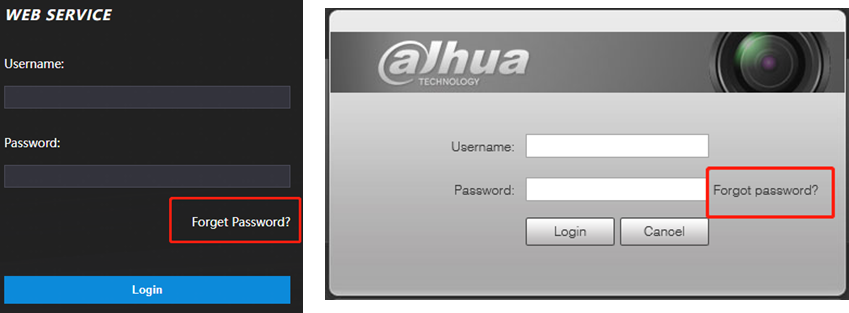
[NVR/XVR, IPC, ASI, VTO] Security Email – You might have set up an email address with this recorder when first setting up this recorder, so you can try the forgot password option on the screen to send the code to that email address.
Video link: Dahua Password Reset via QR Code & Email
[NVR/XVR, IPC, ASI, VTO] QR Code (Email) – built-in method, if this was set up on the device that was installed, you can get to this by right-clicking on the screen by selecting a forgotten password (or clicking the lock icon) and selecting QR Codes, then follow the on-screen instructions.
See How to reset NVR/XVR Password by DMSS?
[IPC, ASI, VTO] XML Reset Method – you must have a computer or laptop on the same network range as a camera, then use configtool to export the XML file, this file is then emailed to support.uk@dahuahelp.com where they will process the XML and send back a “results.xml” files.
You can process XML file by using DoLynk Care now. How to reset device password by XML file on ConfigTool & DoLynk Care
Following the on-screen instruction on configtool you will insert these files and the password can now be changed. Here is another video that is very useful for showing this process:
Video link: IP Camera 2025 Reset Guide via Email (UK Only)
[Some Old devices] Email us – if you email support.uk@dahuahelp.com with the subject line “Password Reset” this will start an automated Email process to generate two codes that may allow you to override the login screen (this method is less used as newer devices don’t support this).
[NVR, XVR version before 2017] User:888888 – this user can be built into some older devices, if you can get in using the username “888888” and password “888888”, you can then go to settings -> system -> default and tick all boxes and press factory reset, when the device reboots, it will ask you to set up a new password for the admin account.
Resetting level:
[Some of IPC, NVR, XVR] Reset Button - Most cameras and recorders have some form of hardware reset button. Here is a great & short video we made showing how this method is done on a PTZ with examples of how to locate the button.
Video link: Dahua IP Camera Reset Method Hardware Reset Button - YouTube
For NVR and XVR, If the model with the SN starts with 7 or bigger, you will find a reset button on the mainboard inside the case, you will need to shut down the recorder, hold the button down and start up the recorder while keeping the button depressed. When you see the Dahua logo you can release the button. It will then proceed to restart and reset the system.
Video link: Dahua Recorder Hardware Reset Button
[NVR, XVR with version 3 firmware] Factory Default – If you have access to any admin login account via pattern on the recorder, you might have access to the factory default option, Please note if you use this option, you will lose all settings and will also lose the cameras you have on the system, only use this option if you have access to cameras passwords with you already.
[IVSS] Please refer to the following document
RMA Level:
If all the above methods fail, please return it to the distributor – this will require the device to be removed from the site and reset at the distributor as they have the tools to connect directly to the Mainboard and override most systems. In the event they are unable to do so, they will offer RMA options.
Comments
1 comment
Very nice article sir
Please sign in to leave a comment.